My Materials
This document introduces the management and usage of user-uploaded materials in Unbounded Cloud Video Editor.
My materials are divided into three types: video, image, and audio, with supported formats as follows:
- Video: Supports MP4, MOV, AVI, WMV and other formats.
- Image: Supports JPG, JPEG, PNG, GIF formats.
- Audio: Supports MP3, WAV, AAC and other formats.
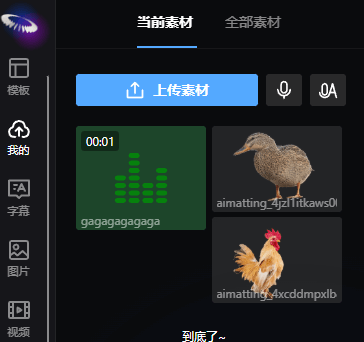
My materials are divided into two major categories: Current Materials and All Materials
- Current Materials: Materials for the current project. When a project is created, a Current Materials folder is automatically created, and users can upload video, image, and audio files in this folder.
- All Materials: Materials from all projects.
By default, materials uploaded by users will be classified into the Current Materials folder.
User Upload Materials
Supports uploading video, image, and audio files. Users can upload materials in the Current Materials folder, or find all project-uploaded materials in the All Materials folder
Text-to-Speech
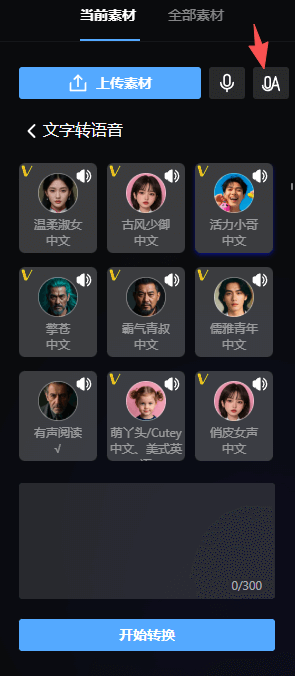
Click the second button to the right of the upload button to open the text-to-speech function. Users can enter text in the input box, click the convert button to convert the text to an audio file. After conversion is complete, the audio file will be automatically added to the track (at the cursor's time node) and automatically uploaded to the current materials folder.
Online Recording
Click the first button to the right of the upload button to open the online recording function. Users can open the recording function in the browser, click the start recording button to start recording, click the stop recording button to end recording. After recording is complete, the recording file will be automatically added to the track (at the cursor's time node) and automatically uploaded to the current materials folder.

Batch Delete
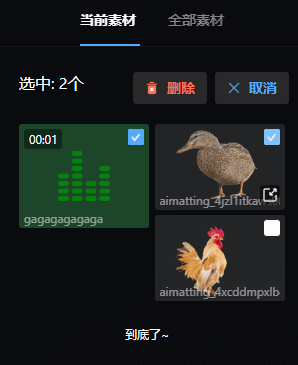
Users can batch delete materials in the folder. When the mouse is placed on the material, a multi-select button will appear. Click the multi-select button to select the material, and click the delete button to batch delete the selected materials.