
Video
Users can switch to the video panel to add and preview video elements.
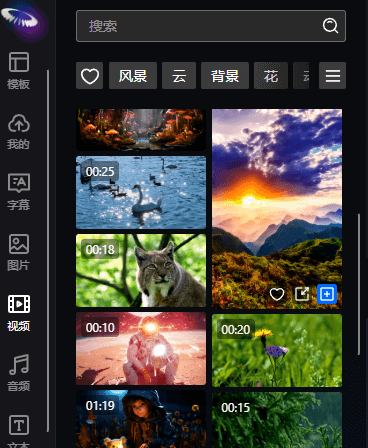
Users can also upload their own video files to the project, supporting formats such as MP4, MOV, AVI, etc. When users upload videos, they will be automatically converted to MP4 format uniformly.
Alignment
The alignment of the element relative to the canvas.

They are: left alignment, horizontal center alignment, right alignment, top alignment, vertical center alignment, and bottom alignment.
Position
The position coordinates of the element's center point relative to the canvas. The coordinate system has the canvas center point as (0,0), with the X-axis positive to the right and the Y-axis positive downward.

Size
The size of the element on the canvas. The two buttons on the right side of the size settings can quickly restore the original size and scale to full screen. Note that if the scale is not 1, the shortcut operation will not be able to fill the full screen.

Scale
The difference between scale and size is that scale can only be scaled proportionally, while size can customize width and height.

Opacity
The opacity of the element, ranging from 0-100%.

Rotation
The rotation angle of the element, without size limitations (frame animation can rotate at any angle).

Color Keying
Reference: Image Color Keying.
Blend Mode
Reference: Image Blend Mode.
Audio Settings
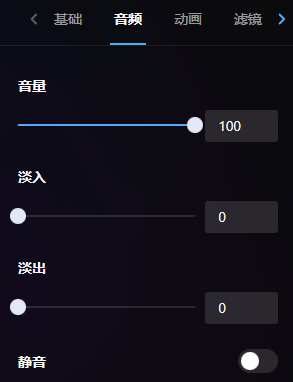
Users can set audio settings for the video, including fade in/out and volume.
Animation Settings
Reference: Image Animation Settings.
Filter Settings
Reference: Element Filter Settings.
Mask Settings
Reference: Element Mask Settings.