
Text
Switch to the Text panel, where users can add text element materials.
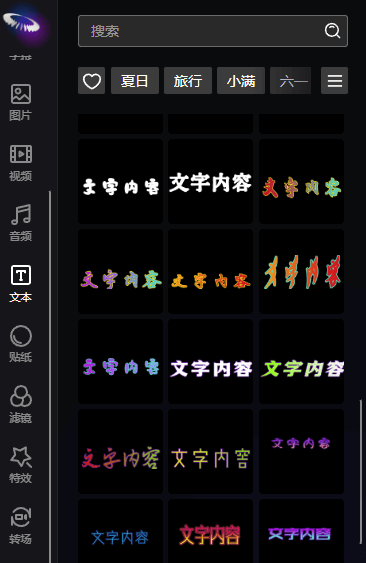
After selecting a text element, users can set various parameters of the text on the property panel, which are introduced below one by one.
Alignment
Element alignment relative to the canvas.

From left to right: Left Align, Horizontal Center, Right Align, Top Align, Vertical Center, Bottom Align.
Position
The coordinate position of the element's center point relative to the canvas. The coordinate system has the canvas center as (0,0), with the X-axis positive to the right and the Y-axis positive downward.

Size
The size of the element on the canvas. The two buttons on the right side of the size setting can quickly restore the original size and scale to full screen. It should be noted that if the zoom size is not 1, the shortcut operation will not be able to fill the full screen.

Scale
The difference between scale and size is that scale can only scale proportionally, while size can customize width and height.

Text Modification
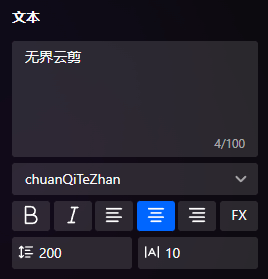
Text content modification, font settings, bold, italic, alignment, horizontal/vertical layout switch, line spacing settings, letter spacing settings.
Opacity
The opacity of the element, ranging from 0-100%.

Rotation
The rotation angle of the element, with no size limit (frame animation can rotate at any angle).

Color
Users can set the color of the text, supporting solid colors and gradient colors (gradient colors support linear gradients: multi-color gradients, gradient angles).

Text Shadow
Users can set the shadow effect of the text, including shadow color, shadow blur radius, shadow offset distance, shadow angle. The display area of the text may cut off part of the text shadow, which can be avoided by setting the text margin.

Text Border
Users can set the color and width of the text stroke.

Text Background
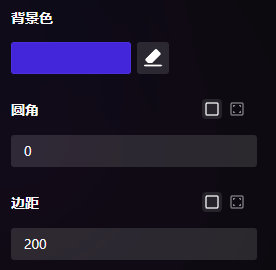
These three parameters can be categorized into one class, mainly used for setting the text background. Users can set the background color, border radius, and margin of the text; the radius and margin can be set separately, and can be switched by clicking the small icon on the right.
Character-by-Character Animation
Users can set the animation effect of text displaying character by character, including total animation duration and easing function. Hover over the animation to preview the effect.
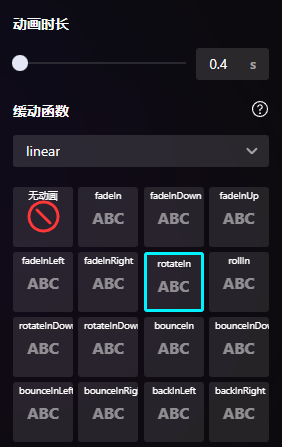
Easing functions reference https://easings.net/zh-cn