
Timeline Tools
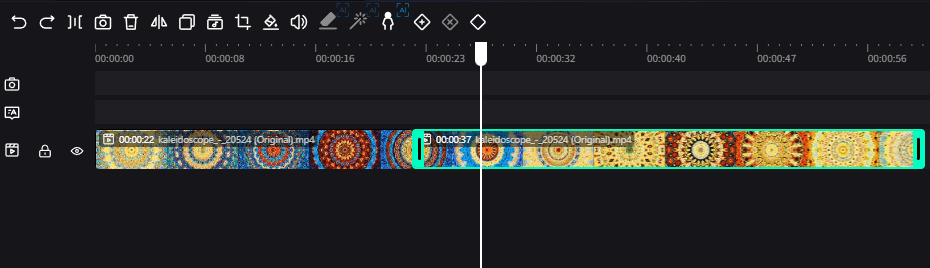
The timeline integrates many shortcut tools that users can access by clicking tool buttons.

Undo & Redo
The 1st and 2nd buttons represent undo and redo operations. Users can click these buttons to undo and redo recent operations. They can also be implemented using keyboard shortcuts ctrl + z and ctrl + shift + z.
Split Element
Select an element, move the cursor to the middle of the element, and click the split button to split the element into two elements: the first half and the second half of the original element.
Add Camera
Reference: Add Camera
Delete Element
After selecting an element, this button will be highlighted, and users can click the button to delete the selected element.
Mirror Flip
Click the button to flip the element left and right.
Copy Element
After selecting an element, this button will be highlighted, and users can click the button to copy the selected element. The copied element will appear near the position of the selected element.
Audio-Video Separation
Separation can only be performed on videos with audio present, and it will automatically separate the audio track into a separate audio element and video element.
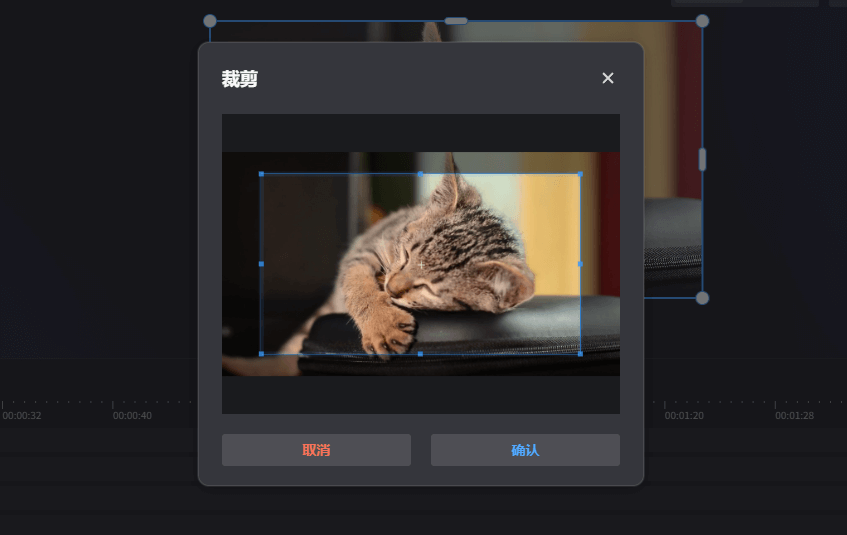
Element Cropping
Crop video and image elements. Users can select an element and drag the crop controller to adjust the size of the cropped area.
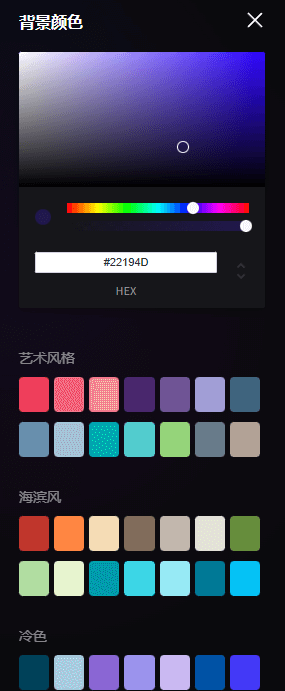
Set Background Color
Click the ICON to open the background color panel, where users can select different background colors to set the canvas background color.
Enable/Disable Sound
This button will appear when selecting video and audio elements, allowing quick enabling/disabling of sound.
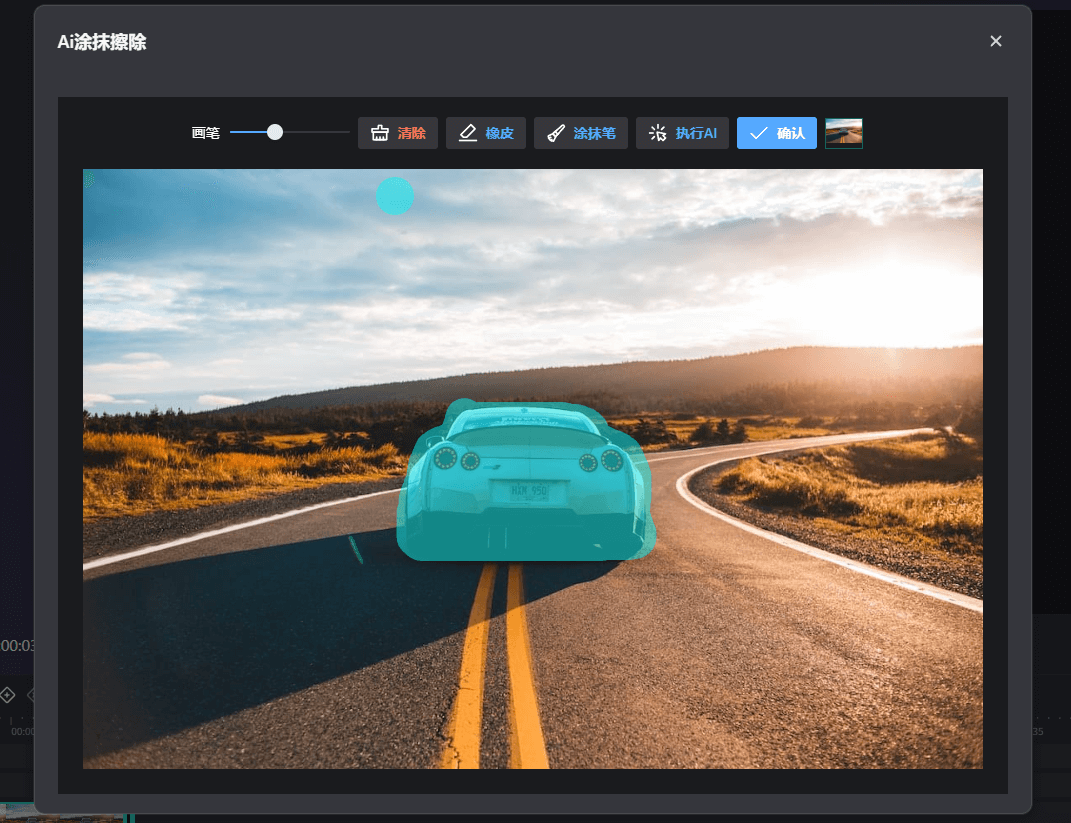
AI Smear Erase Element
It will be highlighted when selecting an image element. Users can click the button to enable AI smear erasure, smear the part to be removed, and click Execute AI to perform the AI smear erasure operation. After the operation is completed, the image on the canvas will be automatically updated.
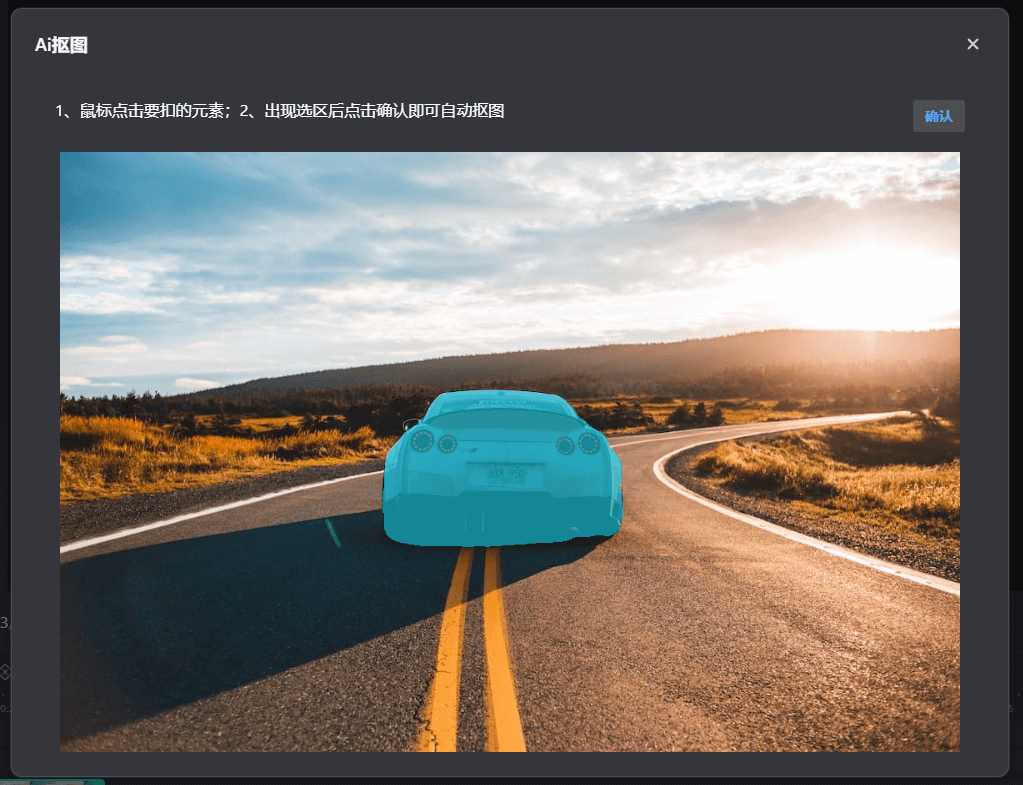
AI Cutout
Click the button after selecting an image to enable the AI cutout function. Users can click the part to be cut out on the image, and click Confirm to perform the AI cutout operation. After the operation is completed, the image on the canvas will be automatically updated.
Keyframe Operations
The last 3 ICONs are add keyframe, delete keyframe, and copy keyframe.
Reference: Frame Animation.