
Images
This document introduces how to add and edit images in Unbounded Cloud Video Editor.
Adding Images
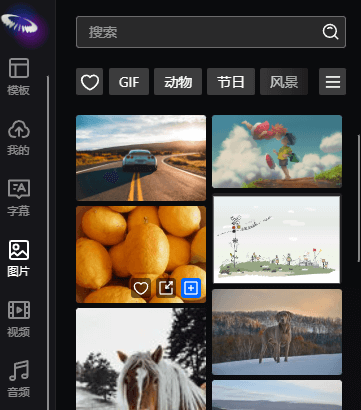
Switch to the Images tab, click the + button or drag an image into the video track to quickly add the image to the canvas.
Alignment
Element alignment relative to the canvas.

From left to right: Left Align, Horizontal Center, Right Align, Top Align, Vertical Center, Bottom Align.
Position
The coordinate position of the element's center point relative to the canvas. The coordinate system has the canvas center as (0,0), with the X-axis positive to the right and the Y-axis positive downward.

Size
The size of the element on the canvas. The two buttons on the right side of the size setting can quickly restore the original size and scale to full screen. It should be noted that if the zoom size is not 1, the shortcut operation will not be able to fill the full screen.

Scale
The difference between scale and size is that scale can only scale proportionally, while size can customize width and height.

Opacity
The opacity of the element, ranging from 0-100%.

Rotation
The rotation angle of the element, with no size limit (frame animation can rotate at any angle).

Color Keying
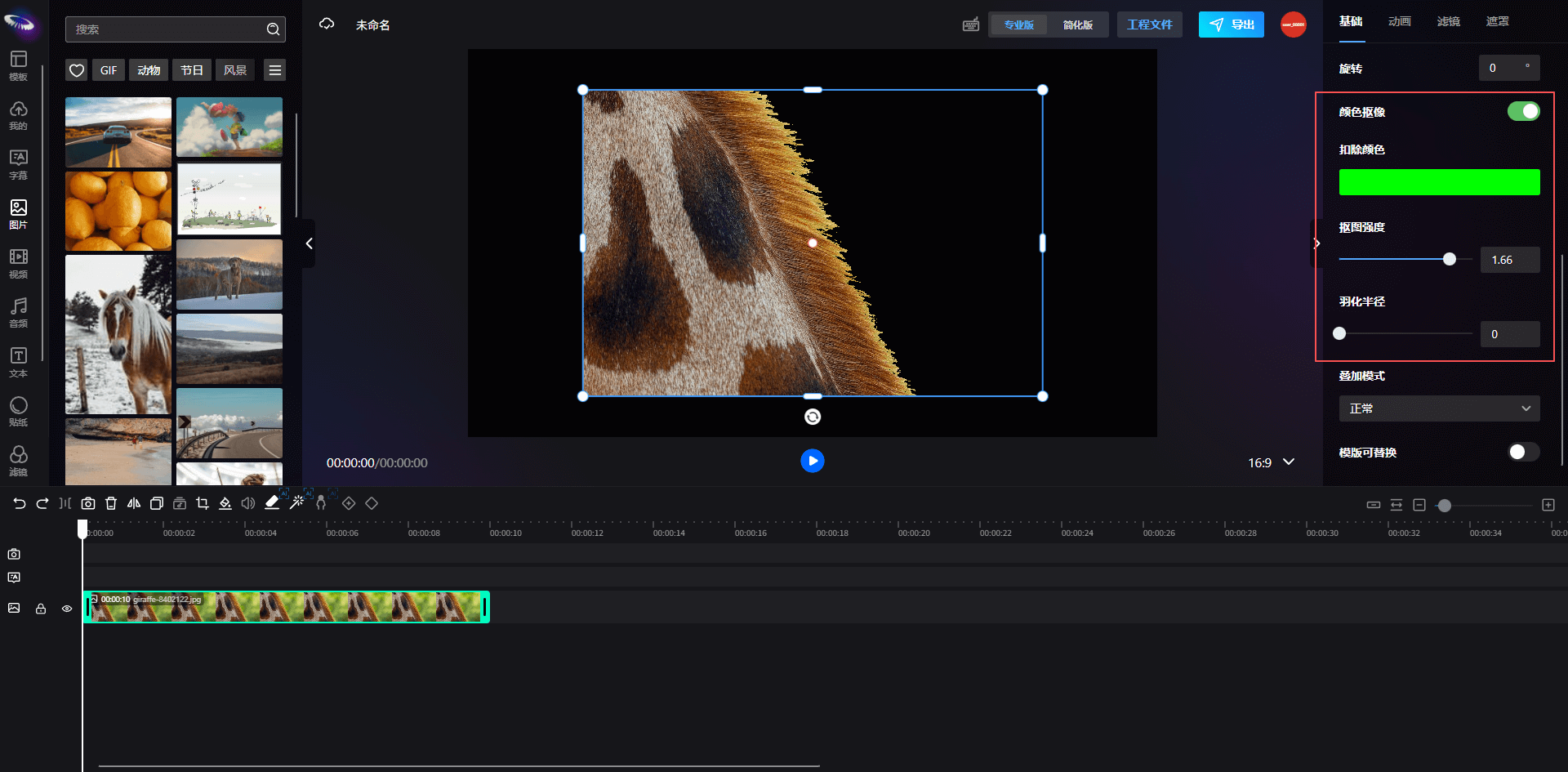
Select an image element, and you can see the Color Keying property in the property panel. Adjust this property to remove colors from images and videos, and you can adjust parameters such as color, intensity, and feathering to make the keying effect more in line with requirements.
Blend Mode
Users can select image and video elements, adjust the Blend Mode property in the property panel to set the blend mode. The blend mode effects are as follows:
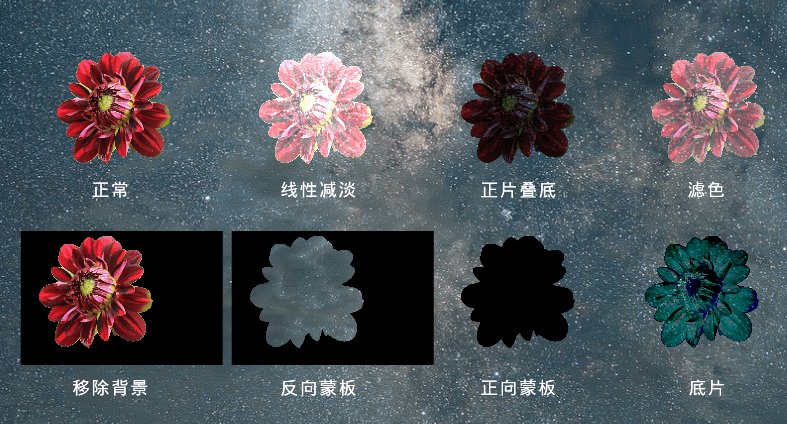
Image Cropping
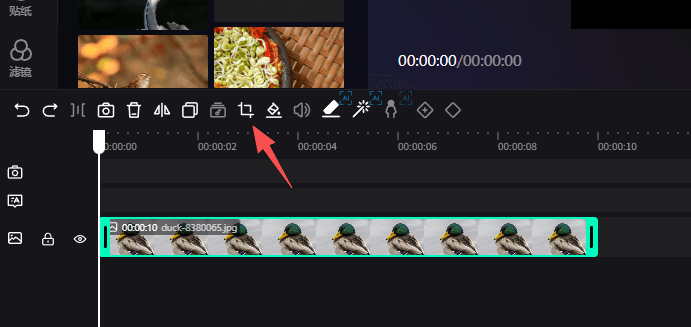
Users can select an image element, click the button shown by the arrow to crop the image.
Animation Settings
Refer to Image Animation Settings.
Filter Settings
Refer to Element Filter Settings.
Mask Settings
Refer to Element Mask Settings.